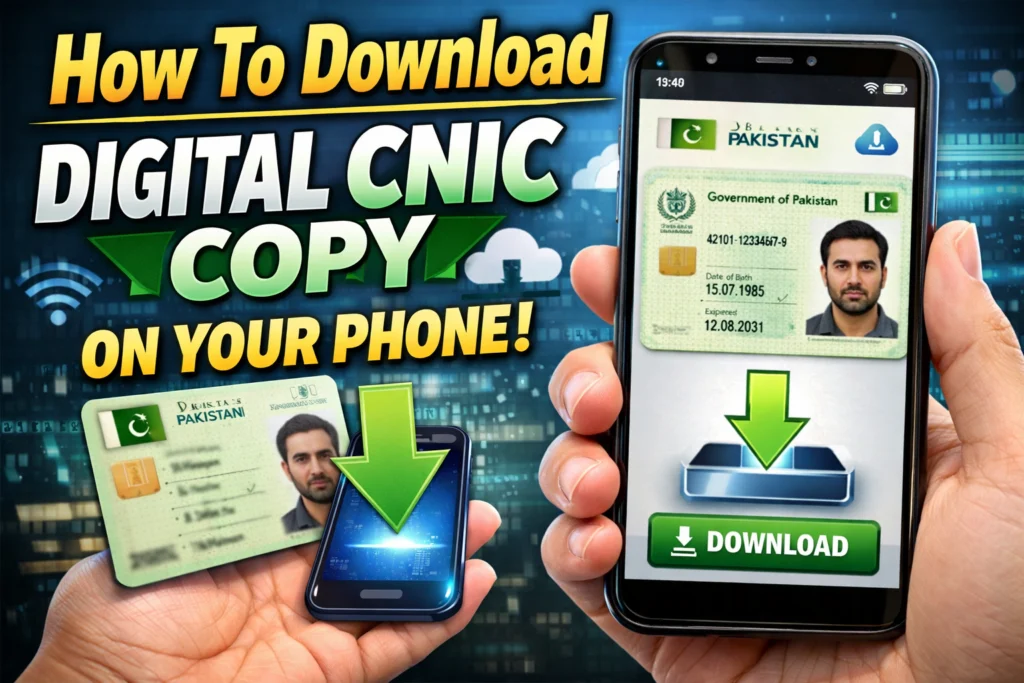
Gone are the days when losing your wallet meant losing your identity literally. With the digitization of government records in Pakistan, carrying a physical ID card is becoming less of a necessity and more of a formality. The National Database and Registration Authority (NADRA) has introduced a seamless way for citizens to carry their identity right in their pockets via their smartphones.
If you are tired of carrying your physical card everywhere or panicking when you realize you left it at home, this guide is for you. We will walk you through exactly how to get a NADRA digital CNIC using the official mobile application. This process ensures you have verifiable credentials at your fingertips, allowing you to prove your identity securely and instantly.
Here is everything you need to know about the CNIC copy download process and setting up your digital ID.
Why Switch to a Digital CNIC?
Before we jump into the technical steps, it is worth understanding why NADRA launched this initiative. The Pak Identity App is not just a photo album for your ID cards; it is a secure platform for your digital identity.
When you access your NADRA digital ID card download through the app, you aren’t just getting a picture. You are accessing a verifiable digital document stored in the Pak Identity Vault. This digital copy is legally recognized for various services, making it a safer alternative to handing over photocopies of your sensitive documents.
Whether you need a CNIC copy online Pakistan for bank verification, travel, or business transactions, the digital ID streamlines the process. It eliminates the need for physical paperwork and reduces the risk of identity theft associated with lost paper copies.
Prerequisites for Download
To successfully complete the NADRA digital CNIC setup, ensure you have the following ready:
- A smartphone (Android or iOS) with a working camera.
- Stable internet connection (Wi-Fi or 4G).
- Your 13-digit CNIC number.
- A valid email address and mobile number for one-time password (OTP) verification.
Step-by-Step Guide to Getting Your Digital CNIC
Follow these steps to access your CNIC copy by CNIC number via the mobile application.
Step 1: Download the Pak Identity App
The first step in acquiring your digital identity is installing the correct software.
- Android Users: Go to the Google Play Store and search for “Pak Identity”.
- iOS Users: Open the Apple App Store and then search for “Pak Identity.”
Ensure you download the official app developed by NADRA to guarantee the security of your data. Avoid third-party apps claiming to offer CNIC copy download services, as these can be security risks.
Step 2: Create Your Account
After installing the app, open it to start the registration process.
- Tap on the “Create Account” button.
- Enter your details, including your First Name, Last Name, and Mobile Number.
- Enter your Email Address. This is crucial as verification codes will be sent here.
- Enter your 13-digit CNIC number (without dashes).
After submitting these details, you will receive a One-Time Password (OTP) via SMS and email. Enter the code in the app to verify your contact information.
Step 3: Biometric Verification
This is the most critical part of the process. To ensure that the person requesting the NADRA digital CNIC is actually the cardholder, the app requires biometric verification.
The app will ask you to scan your fingerprints and take a photograph.
- Fingerprints: Place your fingers in front of the rear camera as guided by the on-screen overlay. The app uses the camera to capture your fingerprints and match them against NADRA’s database.
- Facial Recognition: You will also need to take a selfie or a photo within the app to verify your facial features.
Pro Tip:Complete this step in a well-lit room.Poor lighting is the number one reason for biometric failure on the app. Ensure your camera lens is clean and your hands are steady.
Step 4: Access the Pak Identity Vault
Once your identity is verified against NADRA’s records, you will be granted access to your account.
- Navigate to the “Digital ID” or “Bag” section of the app.
- Here, you will find your digital CNIC stored securely in the Pak Identity Vault.
This vault is an encrypted space on your phone. Unlike a standard photo gallery, the vault ensures that your documents are tamper-proof and secure.
Step 5: Using Your Digital ID
Now that you have your NADRA digital ID card download completed, you can use it.
- View Document: You can view the front and back of your CNIC digitally.
- Share Securely: The app allows you to share verifiable credentials with service providers (like banks or telcos) directly from the app, minimizing the need for physical NADRA CNIC color copy online printouts.
Troubleshooting Common Issues
While the Pak Identity App is robust, users occasionally face hurdles. Here is how to fix them.
“Biometric Verification Failed”
This usually happens due to poor camera quality or bad lighting.
- Solution: Use the rear camera instead of the front camera for fingerprints. Place your hand against a solid, neutral background (like a white wall) to help the camera focus.
“Account Already Exists”
If you have previously used the Pak ID web portal for renewing an ID card, you might already have an account.
- Solution: Try logging in with your existing credentials instead of creating a new account.If you’ve forgotten your password, click “Forgot Password” on the login screen.
App Crashing
Older phones may struggle with the biometric processing features.
- Solution: Ensure your phone’s operating system is up to date. If the problem persists, try clearing the app’s cache in your phone settings.
Pak ID Web Portal vs. Mobile App
You might see references to the Pak ID web portal when searching for CNIC copy online Pakistan. It is important to know the difference.
- The Mobile App: Best for downloading your digital ID, biometric verification, and storing verifiable credentials on your phone.
- The Web Portal: Best for applying for a new CNIC, renewing an expired card, or modifying data (like a change of address).
While the web portal allows you to manage applications, the NADRA digital CNIC for daily use is best accessed through the mobile app for portability.
Frequently Asked Questions
Can I get a NADRA ID Card copy download PDF?
Currently, the Pak Identity app focuses on verifiable credentials stored within the app’s vault for security reasons. While you can view your details, NADRA discourages downloading a simple PDF file to your gallery because unencrypted PDFs are easy to forge. The app provides a secure, digital alternative to a PDF.
Is the digital copy valid for police checkpoints?
Yes, the digital ID provided in the Pak Identity app is an official government document. However, adoption varies, so it is wise to carry your physical card for critical travel until digital acceptance becomes universal across all checkpoints.
Can I get a CNIC copy by CNIC number only?
You cannot download someone else’s CNIC just by knowing their number. The biometric verification step (fingerprints and facial scan) ensures that only the actual owner of the CNIC can access the digital copy.
How do I get a NADRA CNIC color copy online?
If you need a physical color copy for a visa application or official file, the digital ID in the app can serve as a reference. However, for a hard copy, you generally need to photocopy your physical card. The digital app is designed for digital verification, not for printing out paper copies.
Embrace the Future of Identity
Setting up your digital ID might take ten minutes today, but it saves hours of hassle in the future. By following this guide to download your NADRA digital CNIC, you ensure that your identity is always secure, accessible, and verifiable.
Digital credentials are the future of administrative services in Pakistan. Whether you are opening a bank account or verifying your sim card, having your ID on your phone puts you ahead of the curve. Download the Pak Identity app today and step into a more secure, paperless future.