Losing access to your digital accounts is frustrating. It usually happens at the most inconvenient times right when you are about to renew your CNIC, apply for a family registration certificate, or modify your data. You open the Pak Identity app, ready to get your paperwork sorted from the comfort of your home, only to realize your password slips your mind.
The National Database and Registration Authority (NADRA) has made life significantly easier for Pakistani citizens, both domestic and overseas, by digitizing identity services. However, strict security protocols mean that if you forget your credentials, you are locked out immediately to protect your data.
Fortunately, recovering your account isn’t difficult. Whether you are using the mobile application or the web portal, the process is straightforward if you have access to your registered email or phone number. This guide covers the exact steps to reset your NADRA Pak Identity app password, troubleshoot common issues like missing OTPs, and create a secure password that meets NADRA’s strict criteria.
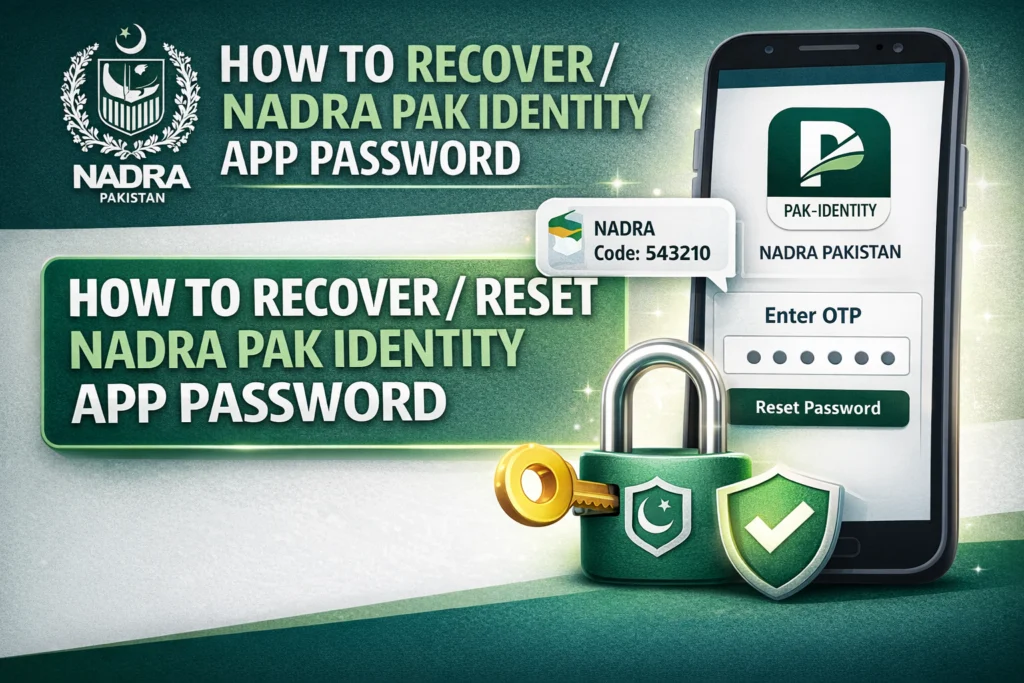
Reset Change Password Pak Identity System
Before jumping into the reset process, it helps to understand how your account works. The Pak Identity system is unified. This means the login credentials you use for the mobile app are the same ones you use for the official NADRA web portal (id.nadra.gov.pk).
If you change your password on the website, it automatically changes for the app, and vice versa. This synchronization gives you two different routes to recover your account. If the app is crashing or acting glitchy, you can switch to a desktop browser to perform the reset, which is often more reliable.
Method 1: Resetting via the Mobile App
For most users, the mobile app is the primary point of access. Here is the standard procedure to recover your account directly through the interface on your smartphone.
Step 1: Locate the Login Screen
Open the Pak Identity app on your Android or iOS device. On the main landing page where it asks for your email and password, look below the “Login” button. You will see an option labeled “Forgot Password?” Tap this link.
Step 2: Enter Registered Details
You will be directed to a recovery screen. Here, the system requires you to prove your identity. You will typically need to enter the email address associated with the account. In some versions of the update, it may also ask for your CNIC/NICOP number to verify the account exists.
Step 3: The Verification Code (OTP)
Once you submit your email, NADRA will send a verification PIN or a One-Time Password (OTP) to your registered email address or mobile number.
- Check your email inbox immediately.
- Check your Spam/Junk folder. Automated messages from government portals often get filtered out by Gmail or Outlook.
Step 4: Create a New Password
Enter the code you received into the app.After verification,You will be asked to create a new password. Enter it twice to confirm, and save the changes. You can now use your new password to log in.
Method 2: Resetting via the NADRA Web Portal
If the mobile app is freezing or not sending the code, do not panic. The web portal is often more stable for administrative tasks like password management.
- Visit the Website: Open your browser and go to the official Pak Identity website.
- Select Login: Click the “Login” button typically found at the top of the page.
- Choose “Forgot Password”: Just like the app, click the link under the credential fields.
- Input Data: Enter your registered email address and the captcha code displayed on the screen.
- Reset Link: Instead of a code, the website might email you a direct link. Click the link within the email to be redirected to the secure password creation page.
Troubleshooting Common Recovery Issues
Sometimes, you follow the steps perfectly, but the system doesn’t cooperate. Here are the most common hurdles users face and how to clear them.
“I’m not receiving the OTP code”
This is the most frequent complaint. If you have waited five minutes and checked your spam folder with no luck, the issue might be network congestion on NADRA’s end.
- Wait and Retry: Do not spam the “Resend” button. Wait 15 to 20 minutes before trying again.
- Switch Methods: If you requested the OTP via the app, try using the website instead.
- Check Storage: Ensure your phone inbox isn’t full if you are expecting an SMS, though email is the primary method for overseas Pakistanis.
“Account does not exist”
If you enter your email and the system says the account doesn’t exist, check for typos first. If the spelling is correct, consider if you used a different email address to sign up years ago. Many users have multiple email accounts and forget which one is linked to their official documents.
“My account is suspended”
NADRA may suspend accounts after too many failed login attempts to prevent hacking. If you see a suspension message, you typically have to wait 24 hours before trying the “Forgot Password” process again. If the account remains locked, you must contact NADRA technical support directly through their website.
Creating a Valid Password
One major point of friction for users is creating a new password that the system accepts. NADRA requires a “Strong Password” to protect sensitive biometric and identity data. If your new password keeps getting rejected, ensure it meets these specific criteria:
- Length: It must be at least 8 characters long.
- Complexity: It must contain a mix of different character types.
- Upper Case: Include at least one capital letter (A, B, C).
- Lower Case: Include at least one small letter (a, b, c).
- Numbers: Include at least one digit (1, 2, 3).
- Special Characters: Include a symbol (@, #, $, %).
Example of a good password: Pakistan@2024 or Nadra#Reset99
Example of a bad password: password123 (No special character or upper case)
What to Do If You Lost Access to Your Email
This is a more difficult scenario. If you no longer have access to the email address you used to register the account, you cannot receive the reset code.
In this case, you cannot simply create a new account if your CNIC is already linked to the old one. The system will flag a duplicate citizen record. You will need to contact NADRA support to request an email update. This usually requires providing proof of identity to ensure you are the legitimate owner of the account before they manually update your profile on the backend.
Keeping Your Account Secure
Once you regain access, take a moment to ensure you don’t lose it again. Consider using a password manager to store your login details securely. Since identity documents are sensitive, avoid writing your password on sticky notes or sharing it with agents.
The Pak Identity app is a powerful tool that saves you from long queues at NADRA centers. While a forgotten password is a temporary speed bump, following the steps above will get you back on track to renewing your ID or processing your application in no time.